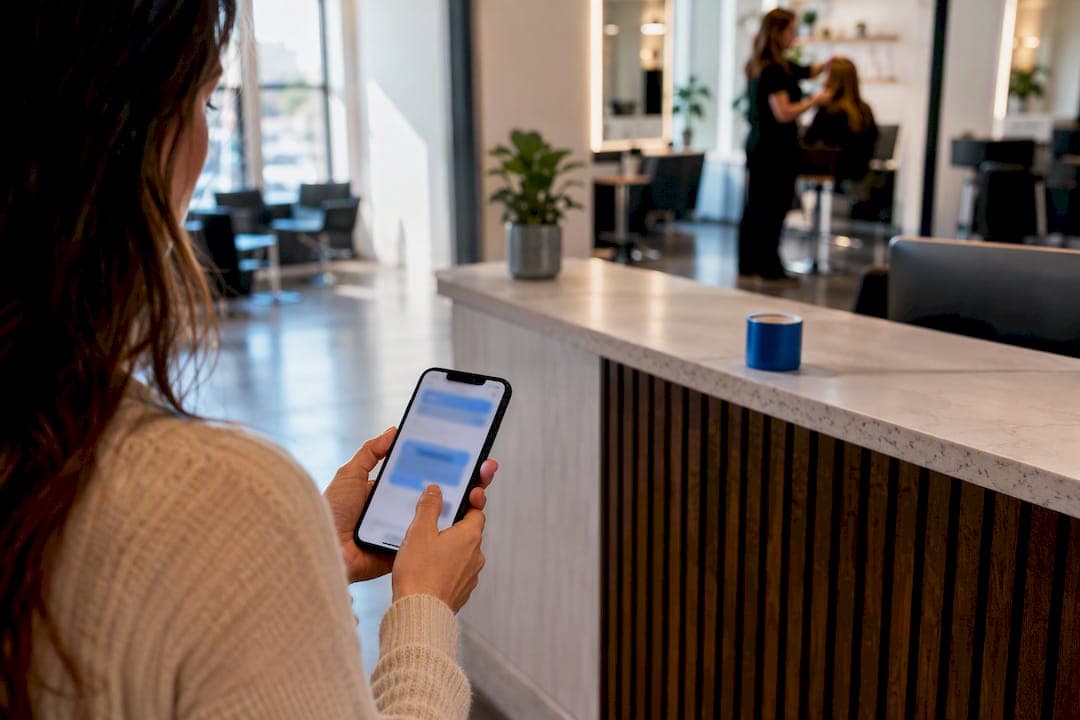
The quickest fix is a booking widget embedded on a dedicated page, which most tools let you paste in as an iframe or script in under five minutes once you have an account set up. A booking link shared in your bio or menu is faster still but sends visitors off-site. Plugins and built-in site-builder booking tools take a bit longer to configure but blend more naturally into your existing pages, and a custom API build is the right call only when your booking logic is genuinely unusual. Pick based on how much time you have this week versus how much control you need long term.
TL;DR:
- Embedding a booking widget offers the quickest setup, taking less than five minutes, but may not match your branding and requires an account with a scheduling tool.
- Using a booking link provides the fastest method by sharing a URL, though it directs visitors off your site and may increase bounce rates.
- Native site builder integrations and plugins improve visual consistency and control but usually require 30 minutes to a few hours to configure properly.
- An API or custom build is only justified for complex booking needs like multi-location handling or proprietary database integration and demands developer expertise.
- Proper testing, mobile responsiveness, clear calls to action, and security measures are essential to ensure your booking system functions smoothly and converts effectively.
Table of Contents
- How Do You Choose a Method to Add Booking to Website Pages?
- Setting Up Your Booking System Step by Step
- How to Embed a Booking Widget on Popular Platforms
- What Should You Check Before Your Booking Page Goes Live?
- Why Booking Page Design Actually Moves the Needle
- Handling Cancellations, Rescheduling, and No-Shows
- Keeping Booking Data Secure and Private
- Making Sure Booking Works on a Phone Screen
- Integrating Payment Gateways Safely for Paid Bookings
- Author Perspective: The Baseline Setup Most Small Businesses Should Start With
- Getting a Professional Booking Page Built Instead of DIY
- Sources
How Do You Choose a Method to Add Booking to Website Pages?
Five real options exist, and the right one depends on your tolerance for setup time versus your need for control over the experience.
- Embed widget: Best for most service businesses. You paste a snippet of code from a scheduling tool into a page, and the calendar shows up right there on your site. Embedding a widget usually takes under five minutes once you have admin access and a booking account. Cost is often $0 to $16 a month for a solo operator on a free or entry tier. The trade-off: you're leaning on a third-party tool's design, which may not perfectly match your branding.
- Booking link or page: The fastest path of all. You get a shareable URL from your scheduling tool and drop it into your nav, email signature, or social bio. No coding, no theme editing. The downside is visitors leave your site, which slightly increases the chance they bounce before finishing the booking.
- Built-in site-builder booking: If your platform (some Wix or Squarespace plans, for instance) has native booking baked in, this is often the cleanest integration since it inherits your site's fonts and colors automatically. Setup runs 30 minutes to a couple hours. Not every plan includes it, and switching tools later can mean rebuilding from scratch.
- Plugin or module: Common on WordPress. More configuration than a widget, sometimes a purchase involved, but you get deeper control over fields, notifications, and design. Budget an afternoon.
- API or custom integration: Worth it only when you need something a widget can't do, like multi-location round-robin assignment or booking tied to a proprietary database. APIs make sense when off-the-shelf tools can't meet your data or workflow requirements, but this is a developer job, not a weekend project.
If you're staring at option five and your gut says "that's not me," it probably isn't. Hire out custom integrations rather than forcing a widget to do something it wasn't built for.
Setting Up Your Booking System Step by Step
Getting a booking tool live involves more than pasting a code snippet. Here's the order that avoids the most common headaches.
- Pick your tool based on real needs, not features you'll never touch. Look for calendar sync, automated reminders, payment support if you charge for bookings, and multi-staff scheduling if you have a team. If you handle any sensitive intake information, check whether the vendor offers a data processing agreement.
- Build out your services or event types first. Give each one a clear name, an honest duration (pad it if you tend to run long), a buffer between bookings, a capacity limit, and pricing that matches what you'll actually charge. Vague names like "Consultation" convert worse than "15-Minute Roof Inspection Call."
- Set your working hours and buffer/lead times. A two-hour lead time keeps someone from booking your 9 a.m. slot at 8:58. Buffers between appointments prevent the domino effect of one late client wrecking your whole afternoon.
- Connect your Google or Outlook calendar. Calendar sync blocks off busy times automatically so you don't get double-booked. The most common pitfall is syncing the wrong calendar, so double-check which one shows as "primary" in your settings before you go live.
- Turn on confirmation emails and automated reminders. A 24-hour reminder plus a shorter same-day nudge is the standard setup, and it exists because automated reminders measurably cut no-show rates.
- Enable payment or deposit capture if money changes hands at booking. Run a real test transaction, refund it, and confirm the receipt lands correctly.
- Test everything end to end before you announce it's live. Book a slot yourself. Confirm the email content reads correctly, check that a calendar invite actually generates, and test the reschedule and cancel links. Running the full flow before launch catches the failures that would otherwise show up as angry client calls.
Pro Tip: Book a test appointment from your phone, not your laptop. Most booking failures happen on mobile, where a form field or payment button gets cut off, and you'll never see it if you only test on a desktop screen.
How to Embed a Booking Widget on Popular Platforms
Every platform handles embeds slightly differently, but the core move is the same: grab a snippet from your booking tool and drop it into a code-friendly block.
- WordPress: Use a Gutenberg Custom HTML block and paste your iframe or script code directly. If you're still on the Classic Editor, switch to the "Text" tab before pasting, not "Visual," or WordPress will strip the code.
- Wix: Add an Embed element from the Wix editor toolbar and paste your code, or use Wix's native booking feature if your plan includes it. Publish and preview on mobile before calling it done.
- Squarespace: Drop a Code Block into any page section and paste the embed. Some plans also ship with a built-in scheduling block, which is worth checking before you bother with custom code.
- Shopify: Open the theme editor and add a Custom Liquid section, or edit a page's source code directly under Pages. If your booking tool has a dedicated Shopify app, that route usually integrates more cleanly with your existing checkout.
- Webflow or plain HTML: Add an Embed element (Webflow) or paste the script tag directly into your page's code. For script-based embeds, place the script tag right before the closing body tag so it doesn't block the rest of the page from loading.
The most common failure across every platform is the same: a visual editor silently strips your code when you paste it into the wrong field. If your widget vanishes after saving, that's almost always what happened, so re-paste it into a raw code or "text" mode field. Also check iframe sizing on mobile. A calendar that fits a desktop screen but overflows a phone screen will quietly kill bookings you never even see abandoned. Strict content security policies on some hosting setups can also block third-party scripts, in which case an iframe embed is usually the safer fallback.
What Should You Check Before Your Booking Page Goes Live?
A launch checklist catches the gaps that turn a working booking tool into a leaky one.
Run through these before you tell a single customer the booking page exists: a visible "Book Now" CTA in your header, a booking prompt on every service page (not buried on one "Contact" page), confirmed mobile responsiveness, a completed test booking, a confirmation email that includes reschedule and cancel links, a calendar invite that actually generates, a reminder that actually sends, and a payment confirmation if you're charging upfront. If you're tracking performance, wire up GA4 event tracking on your booking button so you can see conversion data instead of guessing.
Have whoever built the site run this check, and re-test any time you change your calendar tool, your theme, or your payment processor. Small tweaks break integrations more often than people expect.
| Metric | Why it matters | Watch for |
|---|---|---|
| Bookings per day | Baseline demand signal | Sudden drop after a site change |
| Visit-to-booking conversion rate | Tells you if the CTA is working | Low rate despite good traffic |
| No-show rate | Reminder effectiveness | Rate above 15% |
| Revenue per booking | Health of your pricing/upsell mix | Steady decline over weeks |
Why Booking Page Design Actually Moves the Needle
A booking widget that technically works isn't the same as one that converts. Placement matters as much as function. Persistent "Book Now" CTAs in the header, on service pages, and in the footer consistently outperform a single link buried on a "Contact Us" page, because visitors decide to book at different points in their visit, not all at the moment they land.
Forge-web-studio builds every client site with mobile-first booking placement and local search visibility baked in from day one, not bolted on later. That combination matters because a booking widget that loads slowly or displays awkwardly on a phone screen loses customers before they ever see your calendar. When the booking experience needs to fit into a larger conversion strategy (trust signals, clear service descriptions, fast load times), that's usually the point where a professional build pays for itself versus another round of DIY tweaking.
One real example: a restaurant reservation page redesigned with the booking button placed directly in the hero section, instead of nested three clicks deep in a "Contact" menu, saw a noticeable uptick in completed reservations within the first weeks of launch. The lesson wasn't a new booking tool. It was moving the same tool somewhere a hungry visitor would actually see it.
Handling Cancellations, Rescheduling, and No-Shows
Every booking tool worth using gives customers a self-service way to cancel or reschedule, and you should make sure that link is visible in every confirmation email, not just implied. Burying the reschedule link forces people to call or email you instead, which creates more work for you and more friction for them.
Set a cancellation window, whether that's 24 hours or same-day, and state it clearly on the booking page itself, not just in fine print. Most tools let you automate a waitlist notification when a slot opens up from a cancellation, which recovers revenue you'd otherwise lose.
No-shows are a different problem than cancellations because the customer never told you anything. Automated reminders are your first defense, and a same-day text or email nudge tends to catch people who genuinely forgot. For paid bookings, a deposit or a no-show fee written into your policy discourages the habitual no-show without punishing someone with a legitimate emergency. Track your no-show rate over time.
Give your booking tool's cancellation and rescheduling automation a real test before launch, the same way you'd test the booking flow itself. Book a slot, cancel it, and confirm the calendar event actually disappears and the notification actually fires.
Keeping Booking Data Secure and Private
Any booking form collects personal information: names, emails, phone numbers, sometimes payment details. That makes basic security hygiene non-negotiable, not optional polish.
Confirm your booking tool runs over HTTPS, which nearly every reputable platform does by default, and never embed a widget from an unverified or unencrypted source. If you handle health, legal, or other sensitive intake information through your booking form, check whether your vendor offers a data processing agreement or equivalent privacy documentation, since that affects your own compliance obligations.
Limit what you ask for on the booking form itself. Every extra field is another piece of data you're responsible for protecting, and most service businesses don't need more than a name, contact method, and service selection to get a customer on the calendar. If you store customer data beyond what the booking tool holds (in a CRM, spreadsheet, or internal database), make sure access is restricted to people who actually need it.
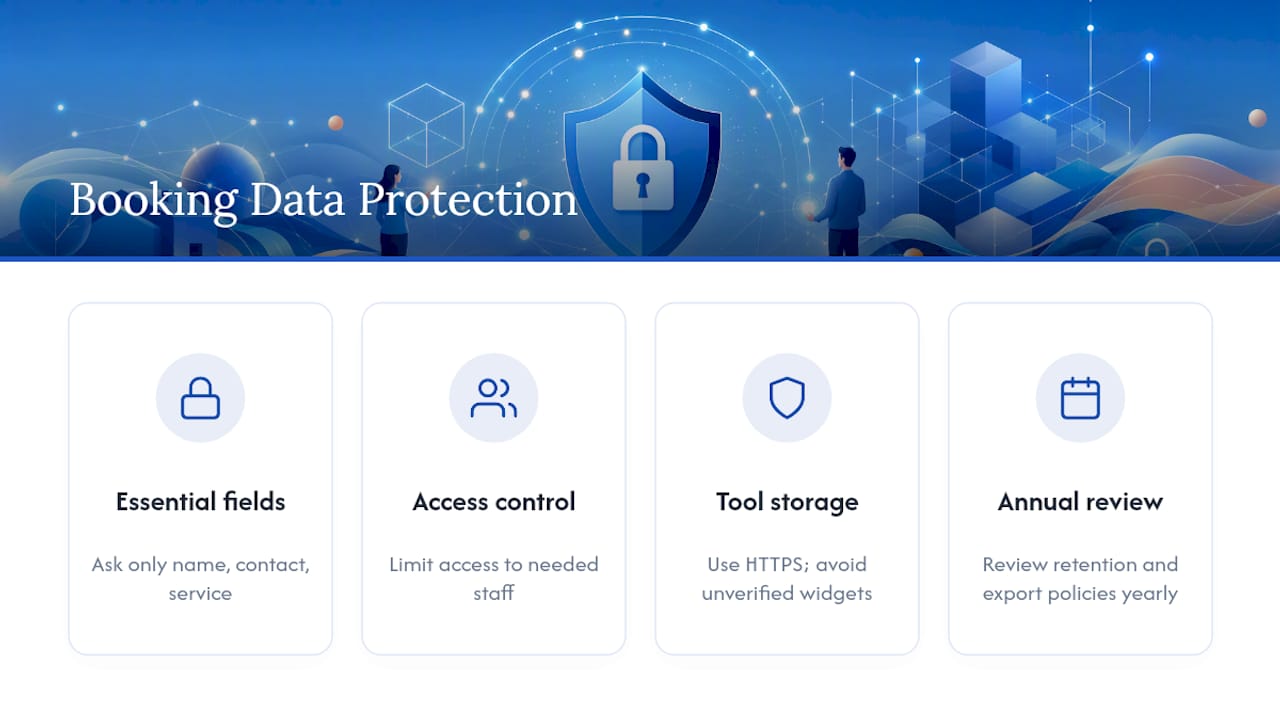
Review your booking tool's data retention and export policies once a year at minimum. Tools change ownership, pricing, and privacy terms more often than most business owners realize, and a policy that was fine when you signed up may not be a year later.
Making Sure Booking Works on a Phone Screen
Most people booking a haircut, a consultation, or a table reservation are doing it from a phone, often while doing something else entirely. If your booking widget doesn't render cleanly on a small screen, you lose them before they see an available time slot.
Test your booking flow specifically on mobile, not just desktop with a resized browser window, since real phone browsers handle embedded iframes and touch targets differently than a shrunk desktop view. Buttons need to be large enough to tap accurately, calendar date pickers need to scroll smoothly without jumping, and form fields need to trigger the right keyboard (numeric for phone numbers, not the full alphabet layout). A responsive site build handles this at the foundation level instead of forcing a widget to fight against a template that wasn't designed with booking in mind.
Pay attention to load time too. A booking widget that takes several seconds to appear on a spotty mobile connection will lose impatient visitors before the calendar even loads. Placing the script tag efficiently and avoiding unnecessary embeds on the same page both help here.
Integrating Payment Gateways Safely for Paid Bookings
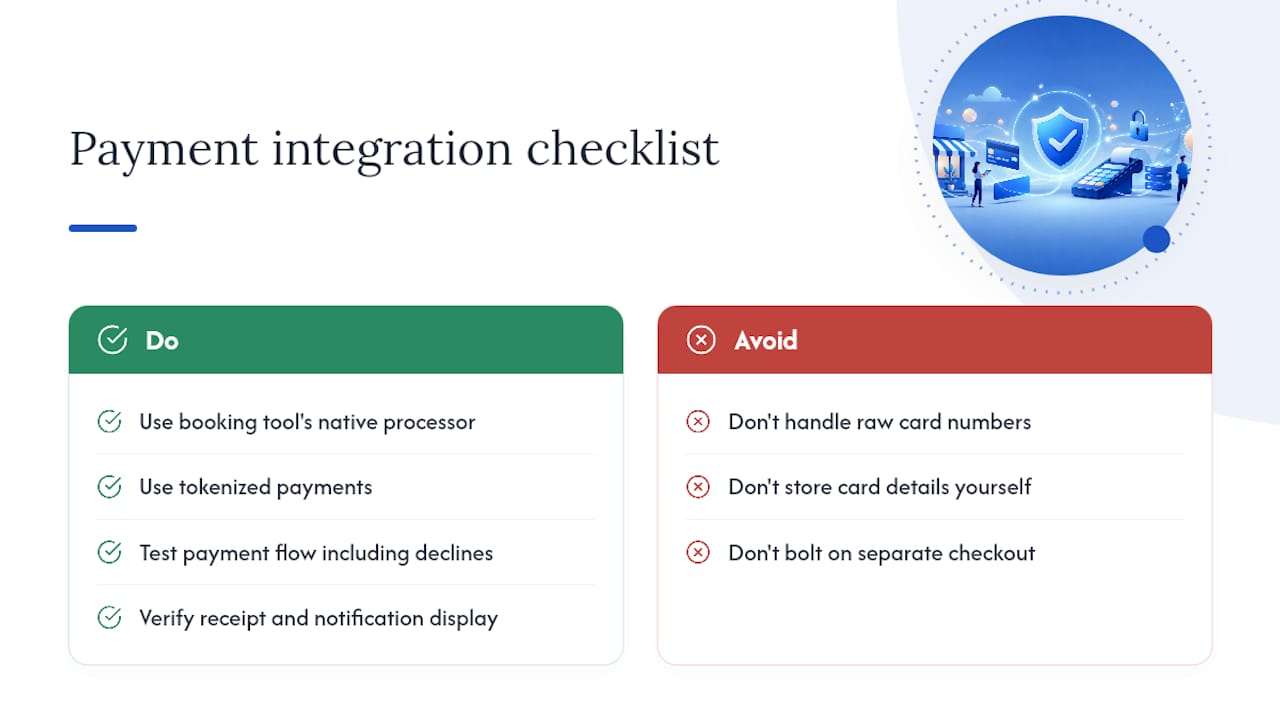
If your bookings involve a deposit, a full prepayment, or a cancellation fee, the payment integration needs the same care as the scheduling logic itself. Most established booking tools connect to a small set of trusted processors (Stripe, Square, PayPal, and similar), and you should stick to whichever your booking tool natively supports rather than trying to bolt on a separate checkout system.
Never handle raw card numbers directly on your own server or form. Reputable processors use tokenization, meaning the sensitive card data never actually touches your website, which keeps you out of the heaviest compliance requirements. If a booking tool asks you to store card details yourself instead of routing through a processor, treat that as a red flag.
Test the full payment flow before launch: a real transaction (even a small one you refund immediately), a look at what the customer's receipt actually says, and a check that your own notification correctly shows the payment as received. Also test what happens on a declined card. A booking flow that crashes or leaves the customer confused after a failed payment costs you more than the lost sale, it costs you the customer's trust.
Author Perspective: The Baseline Setup Most Small Businesses Should Start With
If you want one configuration to start with, do this: an inline embed widget on a dedicated booking page, a floating "Book Now" button that follows scroll, and a header CTA that's visible from any page. Connect your Google Calendar. Turn on a 24-hour reminder and a 2-hour reminder. Then run it live for one full week before you consider it finished.
That combination balances three things people usually treat as trade-offs: it keeps visitors on your site, it's fast enough to set up in an afternoon, and it leaves room to swap in a custom build later if you outgrow it. The single biggest mobile-conversion fix I'd push on any small business owner is to make the "Book Now" button visually distinct on the page. Strong contrast, rather than the text copy itself, is what encourages users to tap.
— Dylan
Getting a Professional Booking Page Built Instead of DIY
If reading through calendar sync settings and iframe placement made you tired before you even opened your booking tool's dashboard, that's a normal reaction, not a sign you're bad at this. Forge-web-studio builds the entire booking experience directly into a mobile-first site instead of bolting a widget onto a template that wasn't designed for it, which means the "Book Now" button, your service pages, and your local search visibility all work together instead of getting configured separately and hoping they play nice.
Here's what that looks like in practice: a booking-ready page placed exactly where visitors decide to convert (hero, service pages, footer), calendar and payment integration configured and tested before launch, and local search setup so people searching for your service actually find the booking page in the first place. Most projects go from kickoff to live site in three days to a week, with clear deliverables and a single point of contact the whole way through.
If you'd rather have a working, tested booking page live this week than spend another weekend fighting with embed codes, take a look at Forge-web-studio's responsive website development services and get a quote on what a done-for-you build would look like for your business.
Sources
- How to Add a Booking Widget to Any Website in 5 Minutes | Kentroi Blog
- How to Add Online Booking to Any Website (Any Platform)
- How to Add Online Booking to Your Website (2026 Guide) | Addagio