
Google Business Profile posts are free, short updates that appear directly on your Business Profile in Google Search and Maps. Publish one today to share an offer, announce an event, or highlight a service, and your next customer may see it before they ever visit your website.
Quick-start checklist:
- Log in to your Google Business Profile and tap "Add update."
- Choose your post type (Offer, Event, or Update), add a photo and a clear call-to-action, then publish.
- Check GBP Insights in 7 days to see views and CTA clicks.
For immediate impact, consider these post types first:
- Offer post for a current promotion or discount
- Event post for an upcoming class, sale, or grand opening
- Update post for news, new hours, or a featured product
Key Takeaways
Google Business Profile posts are free, measurable, and one of the fastest ways a local business can appear in front of customers at the exact moment they are searching.
| Point | Details |
|---|---|
| Posts are free and visible in Search and Maps | Any verified business can publish updates, offers, and events at no cost. |
| Post at least once a week | Weekly posting keeps your profile active and correlates with stronger local visibility. |
| Tag every CTA link with UTMs | UTM parameters let you track post-driven traffic and conversions in Google Analytics. |
| Match each CTA to a specific landing page | Sending clicks to a homepage wastes the conversion; use a page built around one action. |
| Forge-web-studio builds the landing pages behind your posts | Their local business landing pages and local SEO services close the gap between a post click and a real lead. |
Table of Contents
- What Google Business Profile posts are and the types you can create
- Where your posts appear in Search and Maps
- How to create a Google Business post step by step
- Technical specs and limits you need to know
- Best practices and ready-to-use post templates
- Post ideas tailored to your industry
- How to measure post performance and improve over time
- How to edit, schedule, and troubleshoot posts
- Forge-web-studio's GBP posting checklist and 7-day micro-calendar
- What most businesses get wrong about Google Business posts
- How Forge-web-studio helps you get more from your GBP posts
- Sources
What Google Business Profile posts are and the types you can create
Google Business Profile posts let you share updates, offers, and events directly on your Business Profile in Search and Maps, and they are completely free to create and manage. Think of them as a mini social feed attached to your Google listing, visible to anyone who finds your business in local search.
There are five main post types, each designed for a specific goal:
| Post Type | Best For | Key Fields | CTA Options |
|---|---|---|---|
| Update | News, announcements, general info | Text, photo/video, button | Learn more, Call now |
| Offer | Discounts, promos, coupons | Title, start/end date, coupon code, terms | Claim offer |
| Event | Classes, sales, grand openings | Title, start/end date/time, description | Sign up, Learn more |
| Product | Showcasing a specific item | Product name, price, description, photo | Order online, Buy |
| Call-to-Action | Driving a specific conversion | Text, photo, button | Book, Sign up, Call |
Every post goes through Google's moderation queue before it appears publicly. Posts that include prohibited content (spam, adult material, misleading claims, or links to malicious sites) are rejected, so reviewing Google's content policy before publishing saves you the delay.
Where your posts appear in Search and Maps
Posts surface in different spots depending on the device and context. On mobile Search, customers see them under the "Updates" or "Overview" tabs when they pull up your Business Profile. On desktop, they appear in the "From the owner" section of the knowledge panel. In Google Maps, posts show up inside your profile when a user taps on your listing.
Visibility is not guaranteed for every search. Several factors affect whether your posts get surfaced:
- Profile completeness: A fully filled-out profile (categories, hours, photos, description) signals credibility and tends to get more exposure.
- Post type and relevance: Offer and Event posts often get priority placement because they carry structured data (dates, discount codes) that Google can parse.
- Timing: A post published the same day a user searches is more likely to appear than one that is weeks old.
- Account verification: Unverified profiles cannot publish posts at all.
- Policy status: Any active policy violation can suppress your entire profile's post visibility.
- Engagement signals: Profiles with consistent posting history tend to maintain better local visibility, according to local marketing best practices.
Pro Tip: Cross-post your Instagram or Facebook content as a GBP Update the same day you publish it socially. You get double the reach for zero extra writing time, and the fresh post date keeps your profile looking active.
How to create a Google Business post step by step
Via the web UI
- Go to Business and sign in.
- Select the location you want to post for (if you manage multiple).
- Click "Add update" in the left menu or directly on the profile card.
- Choose your post type: Update, Offer, Event, or Product.
- Upload a photo or video (recommended: 1200 × 900 px, JPG or PNG).
- Write your post text. Keep the most important information in the first 100 characters since that is what shows before truncation.
- Add a CTA button if the post type supports it (e.g., "Book," "Call now," "Learn more").
- For Offer or Event posts, set start and end dates.
- Use the Schedule option to set a future publish date, or click Publish to go live immediately.
Via the mobile app
- Open the Google Maps app and tap your profile photo to access your Business Profile.
- Tap "Promote" then "Add update."
- Follow the same steps as the web UI to add media, text, and a CTA.
- Tap "Post" when ready.
Via the API
Developers and agencies managing multiple locations can use the Google Business Profile API endpoint accounts.locations.localPosts to create, edit (PATCH), and delete (DELETE) posts programmatically. Supported CTA action types include BOOK, ORDER, SHOP, LEARN_MORE, SIGN_UP, and CALL. The API requires OAuth 2.0 authentication. This route is most practical for businesses with five or more locations or for agencies running scheduled post campaigns at scale.
Additional post management actions:
- Edit: Open the post in your profile dashboard and click the pencil icon.
- Delete: Click the three-dot menu on any live post and select "Delete."
- Schedule: Available in the web UI via the scheduling toggle before you publish.
- Recurring posts: Set via the "Repeats" dropdown in the UI or through the API's recurrence fields, which support weekly or monthly repeat intervals.
Technical specs and limits you need to know
Getting rejected over a fixable spec issue wastes time. Here are the hard limits:
Text:
- Update posts: up to 1,500 characters (visible truncation kicks in around 100 characters on mobile)
- Offer and Event titles: up to 58 characters
- Offer terms and conditions: up to 5,000 characters
Images:
- Recommended size: 1200 × 900 px (4:3 aspect ratio)
- Minimum: 400 × 300 px
- Formats: JPG, PNG
- Max file size: 5 MB
- Google crops images to fit the display frame, so keep key visuals centered
Video:
- Max length: 30 seconds
- Max file size: 75 MB
- Formats: AVI, MP4, MOV, FLV, WMV, MPG, M4V, MKV, ASF, M2TS
CTAs and links:
- Each post supports one CTA button
- Link to a specific landing page rather than your homepage whenever possible
- Append UTM parameters to every CTA URL (e.g.,
?utm_source=google&utm_medium=gbp_post&utm_campaign=spring_offer) so you can track traffic in Google Analytics - Google blocks links to sites flagged as malicious or spammy; if your post is rejected, check that your destination URL is clean and resolves correctly
For a deeper look at optimizing your full Google Business Profile, the technical specs above are just the starting point.
Best practices and ready-to-use post templates
8 rules that actually move the needle
- Write your CTA first. Decide what you want the reader to do, then write the post around that action.
- Use a real photo, not a stock image. Photos of your actual product, team, or location outperform generic visuals.
- One offer per post. Multiple promotions in a single post dilute the message and confuse the reader.
- Tag every CTA URL with UTM parameters. Without them, GBP traffic blends into "direct" in Analytics and you lose the data.
- Post at least once a week. Weekly posting keeps your profile fresh and correlates with better local visibility.
- Use local keywords naturally. Mentioning your city or neighborhood in the post text reinforces local relevance signals.
- Measure, then iterate. Check GBP Insights after 7 days and swap out underperforming copy or images.
- Stay policy-compliant. Avoid superlatives like "best in the world," phone numbers in post text, and links to redirect chains.
Pro Tip: Google's Gemini app can draft post content based on your profile data and recent reviews. Use it to generate a first draft, then edit for your specific offer details, local phrasing, and accurate links before publishing. Full automation without human review tends to produce generic copy that underperforms.
10 copy-ready post templates
Update posts:
- "We've extended our hours! Now open until 8 PM on weekdays. Stop by [Business Name] at [Address] or call us to schedule. [CTA: Call now]"
- "Meet the team behind [Business Name]. We've been serving [City] since [Year] and we're proud of every project. [CTA: Learn more]"
- "New service alert: We now offer [Service Name]. Book your first appointment this week. [CTA: Book]"
Offer posts:
- "Save 20% on [Service/Product] this week only. Use code SAVE20 at checkout. Offer ends [Date]. [CTA: Claim offer]"
- "First-time customers get a free consultation — no strings attached. Limited spots available. [CTA: Book]"
- "Buy one, get one 50% off on [Product]. Valid in-store and online through [Date]. [CTA: Shop now]"
Event posts:
- "[Workshop Name] is happening [Date] at [Time]. Learn [Skill/Topic] in 2 hours. Seats are limited. [CTA: Sign up]"
- "Grand opening celebration at our new [City] location on [Date]. Free refreshments, giveaways, and a ribbon-cutting at [Time]. [CTA: Learn more]"
- "Join us for our monthly [Event Name] on [Date]. Open to all [City] residents. [CTA: Sign up]"
- "End-of-season clearance sale starts [Date]. Up to 40% off select items. [CTA: Shop now]"
Post ideas tailored to your industry
Generic posts work, but industry-specific ones convert better. Here are targeted ideas by vertical, along with the post type and CTA that fit each:
- Retail: "New arrivals just landed — [Product Category] now in stock." (Update, Learn more) Pair with a product photo taken in your store.
- Restaurant: "Weekend special: [Dish Name] available Friday through Sunday only." (Offer, Order online) Link to your online ordering page, not your homepage. For restaurants, a well-designed landing page behind that CTA makes a measurable difference in conversions.
- Home services (plumber, HVAC, landscaper): "Spring tune-up special: $30 off your first HVAC service call this month." (Offer, Book) Urgency and a clear dollar amount outperform vague "save big" language.
- Healthcare / wellness: "Accepting new patients for [Service]. Schedule a consultation online." (Call-to-action, Book) Avoid making specific health outcome claims in post text; Google's policy flags them and so do FTC guidelines.
- Professional services (law, accounting, consulting): "Tax season is here. Free 30-minute consultation for new clients through [Date]." (Offer, Book) Keep claims factual and avoid guarantees.
- Auto services: "Oil change + tire rotation for $59.99 this month only. No appointment needed." (Offer, Call now) Simple, price-anchored offers drive the most clicks in this vertical.
- Fitness / studios: "New class schedule posted for [Month]. Morning and evening slots available." (Update, Sign up) Weekly class schedules are a natural fit for recurring posts via the API.
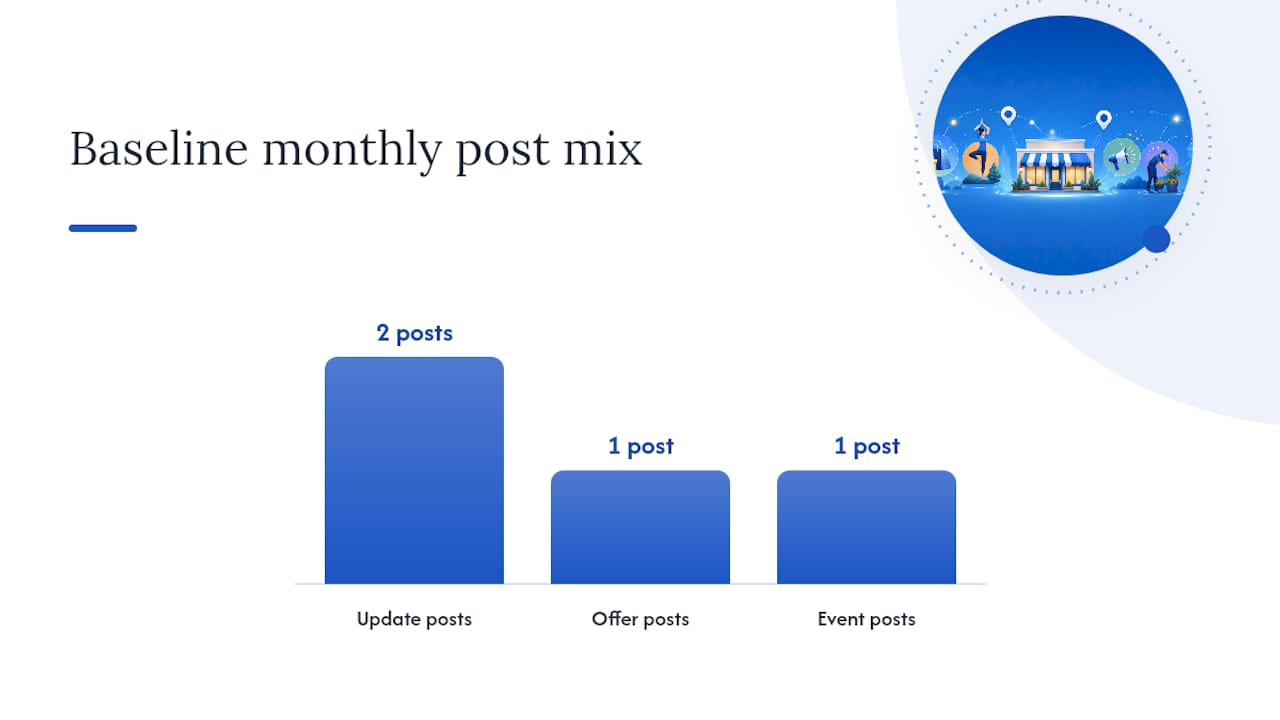
Mix post types across a month: run one Offer post, one Event post, and two Update posts per month as a baseline, then add Product posts when you launch something new. This variety keeps your profile looking active without repeating the same format every week. For more ideas on pairing posts with local SEO tactics, a consistent content calendar is the single biggest lever most small businesses overlook.
How to measure post performance and improve over time
GBP Insights gives you three core metrics for posts: post views (how many times the post was seen), CTA clicks (how many times the button was tapped), and photo views (for posts with images). Access them by going to your Business Profile dashboard and clicking "Performance."
What to watch:
- A high view count with low CTA clicks usually means the image or headline is not compelling enough. Swap the photo first, then test a different CTA label.
- Low view counts on an Offer post often signal a timing issue. Try publishing Tuesday through Thursday, when local search volume tends to be higher than on weekends.
- If a post drives clicks but you see no corresponding traffic in Google Analytics, your UTM tags are either missing or malformed. Check the URL directly in a browser before republishing.
Connecting GBP to Google Analytics:
Tag every CTA link with UTM parameters and set up a Goal or GA4 Event on your landing page's confirmation screen. That way, you can trace a GBP post click all the way to a form submission or purchase, not just a page visit.
Optimization loop:
- Run two versions of the same post in consecutive weeks with one variable changed (image, headline, or CTA label).
- Archive posts that consistently underperform after two runs.
- Re-run high-performing Offer posts when the promotion repeats.
- Review your top three posts by CTA clicks each month and use them as templates for the next month's content.
For a broader look at how GBP marketing drives local growth, tracking post performance is the piece most small businesses skip, and it is exactly where the gap between active and inactive profiles widens.
How to edit, schedule, and troubleshoot posts
Editing and deleting
- Go to your Business Profile dashboard and click "Posts" in the left menu.
- Find the live post you want to change and click the pencil icon to edit.
- Make your changes, then click "Update."
- To delete, click the three-dot menu on the post card and select "Delete." Deletion is permanent.
Scheduling and recurring posts
The web UI lets you schedule a post for a future date and time using the scheduling toggle on the publish screen. For recurring posts, use the "Repeats" dropdown to set weekly or monthly intervals. Developers can access recurrence fields via the API for more granular control, which is useful for businesses running weekly specials or class schedules that repeat on a fixed cadence. Recurring posts via the API work best for routine reminders; time-limited offers should be single-run posts with a clear expiry date to avoid customer confusion.

Troubleshooting checklist
If your post is not showing or is stuck in "pending":
- Verification: Confirm your profile is fully verified. Unverified profiles cannot publish posts.
- Policy violation: Review the rejection notice in your dashboard. Common triggers include phone numbers in post text, misleading claims, and links to redirect chains.
- Image issues: An image below the minimum size (400 × 300 px) or above 5 MB will cause a post to fail silently in some cases.
- Link blocking: If your CTA URL points to a domain Google has flagged, the post will be rejected. Test the URL in a browser and check Google's Safe Browsing tool.
- Profile edits in review: Google sometimes applies automatic updates to Business Profiles from third-party sources, which can temporarily affect post visibility. Check your profile editor for any color-coded pending changes and accept or reject them.
Forge-web-studio's GBP posting checklist and 7-day micro-calendar
Before you hit publish, run through this QA checklist:
- Photo is at least 1200 × 900 px, under 5 MB, and shows your actual product or location
- Post text leads with the key offer or news in the first 100 characters
- CTA button is set and links to a specific landing page (not your homepage)
- UTM parameters are appended to the CTA URL
- Offer or Event post has correct start and end dates
- No phone numbers, prohibited claims, or redirect links in the post body
- Post is scheduled for a Tuesday–Thursday publish window if timing is flexible
- For recurring posts: confirm the repeat interval and end date are set correctly
7-day sample posting calendar:
Recurring post QA:
- Confirm the post content is still accurate before each recurrence goes live
- Check that the linked landing page is still active and the offer has not expired
- Review Insights weekly and pause recurring posts that stop generating clicks
What most businesses get wrong about Google Business posts
The most common mistake is treating GBP posts like a social media afterthought, something you do when you remember. The businesses that see real results from posts treat them like a mini ad campaign: specific offer, specific audience, specific landing page, and a UTM tag so they know what worked.
The second mistake is posting without a destination. A post that says "Check out our new service!" with a CTA that links to the homepage is a dead end. The reader clicks, lands on a page with no clear next step, and leaves. Every post CTA should point to a page built around one action, whether that is booking, calling, or buying. If your current website does not have those pages, the posts are doing the hard work of getting the click and then losing the conversion.
The third thing practitioners underestimate is the API. Most small businesses will never need it, but for anyone managing more than a handful of locations or running weekly recurring promotions, the accounts.locations.localPosts endpoint turns a manual weekly task into a scheduled workflow. The GBP API documentation is more approachable than it looks, and the OAuth setup is a one-time investment.
Posts are free. The cost is the time to do them well, and the cost of doing them poorly is a click that goes nowhere.
How Forge-web-studio helps you get more from your GBP posts
Most small businesses have the posting part figured out. The gap is what happens after the click.
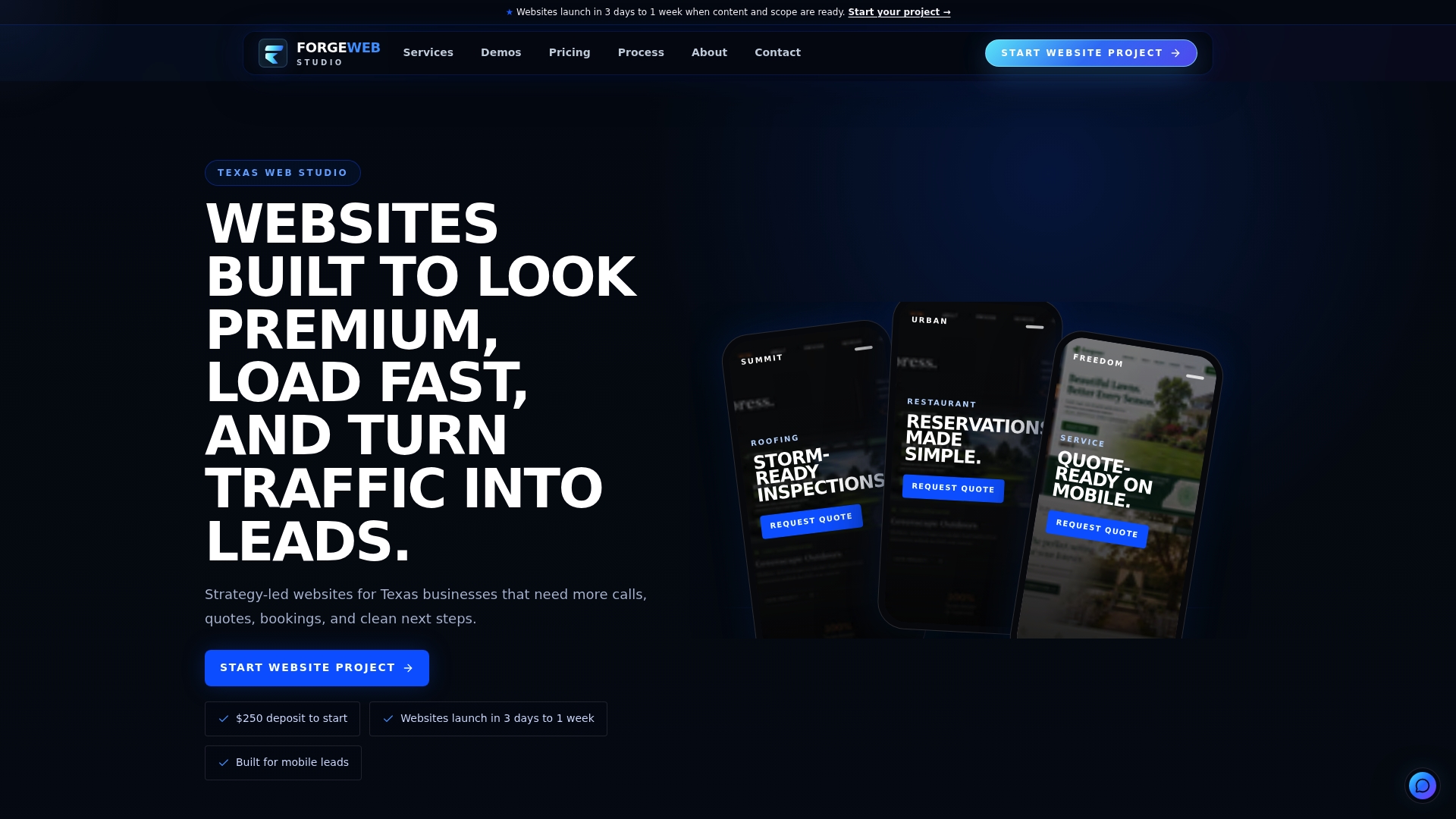
Forge-web-studio builds landing pages for local businesses that are designed around a single conversion action, so every GBP post CTA has somewhere worth sending traffic. The process runs from a GBP and site audit, through template and copy setup, to UTM tracking configuration and a monthly reporting cadence. No long-term retainer required. Texas businesses get a site that loads fast on mobile, shows trust signals above the fold, and turns post clicks into calls and form submissions. If your current site is the weak link in your GBP strategy, see what Forge-web-studio's web design services include and request a quote to get started.
Sources
- Create & manage posts on your Business Profile - Google Business Profile Help
- Gemini features for businesses — Google blog
- Google Business Profile Posts: A Comprehensive Guide » Rank Math